> ## Documentation Index
> Fetch the complete documentation index at: https://docs.getreditus.com/llms.txt
> Use this file to discover all available pages before exploring further.
# Installation
> Tracking Script Installation
# How to install the tracking script?
## Video
## Ading the Tracking Script to an HTML Website
To ensure proper tracking, add the script (which you can find in your Reditus settings) before the closing `` tag of your HTML. This ensures the script is available on all pages, including the crucial referral landing and sign-up pages (e.g., *app.getreditus.com*).
**The script must be added on all pages and subdomains.**
## Adding the Tracking Script to Google Tag Manager
Watch our tutorial on how to add the script via Google Tag Manager: [Loom Tutorial](https://www.loom.com/share/836ca0ff14904cba885387794685a153?sid=3fb8dd6b-de0e-420c-9662-cbda52e99d4c)
Steps:
1. Log into your [Tag Manager Account](https://tagmanager.google.com/).
2. Create a new Tag.
3. Set up the tag like the image below and hit Save.
4. Submit your changes via the dashboard.
## Adding the Reditus Tracking Script to a WordPress Website
1. Log in to your WordPress admin panel.
2. Install a Header & Footer Script plugin (if you haven’t already).
3. Navigate to Settings > Header and Footer Scripts.
4. Paste the tracking script into the Header box.
**In this case, you must add the tracking script before the closing \ tag.**
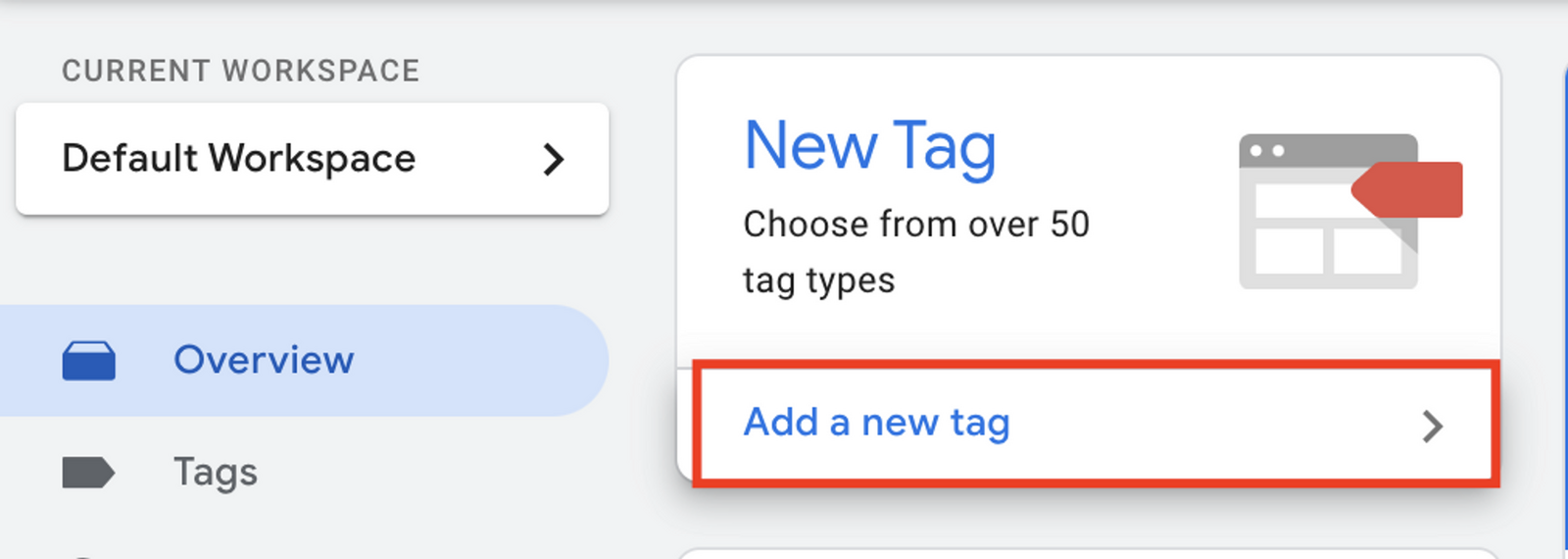 3. Set up the tag like the image below and hit Save.
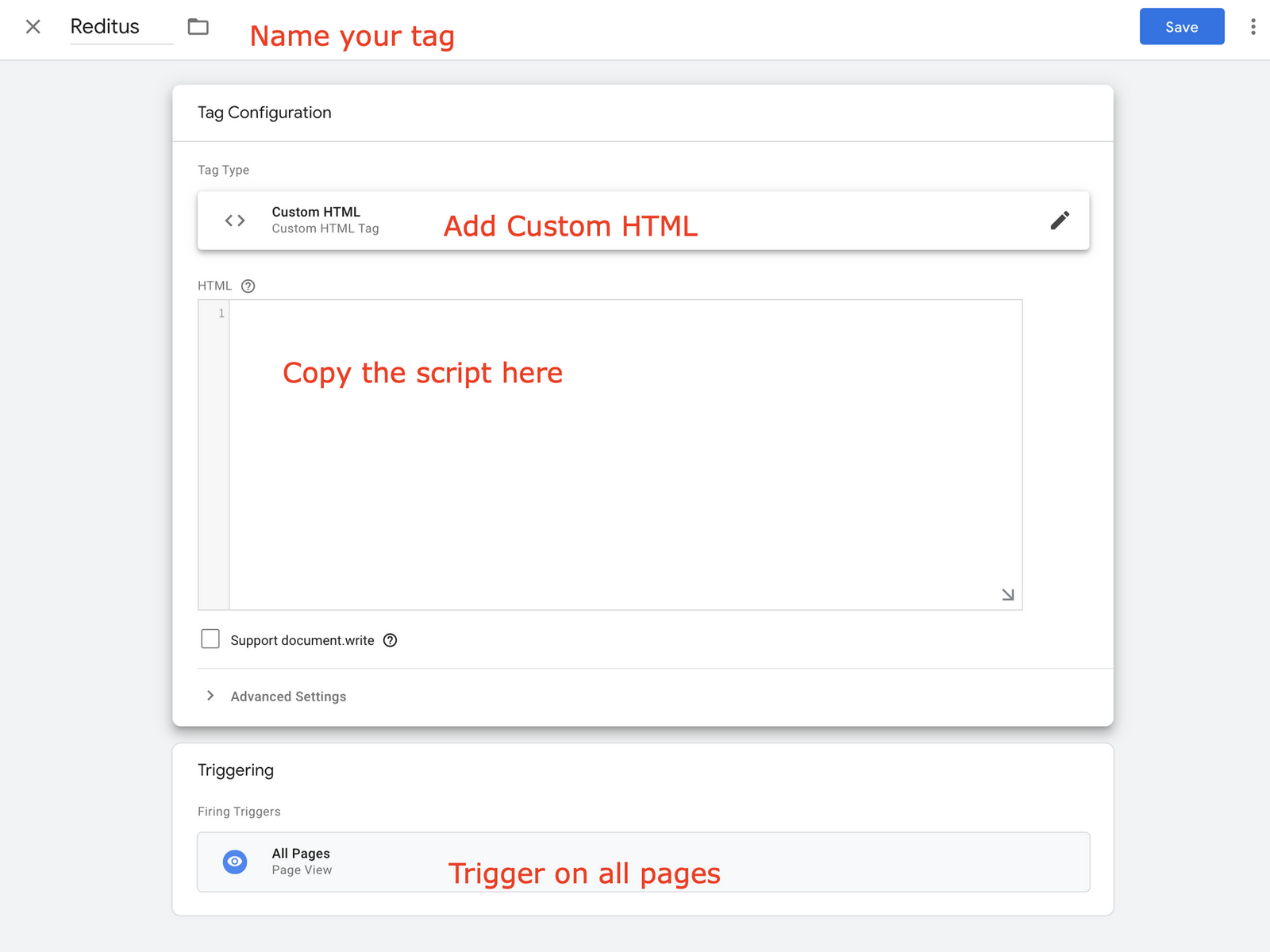 4. Submit your changes via the dashboard.
 ## Adding the Reditus Tracking Script to a WordPress Website
1. Log in to your WordPress admin panel.
2. Install a Header & Footer Script plugin (if you haven’t already).
3. Navigate to Settings > Header and Footer Scripts.
4. Paste the tracking script into the Header box.
## Adding the Reditus Tracking Script to a WordPress Website
1. Log in to your WordPress admin panel.
2. Install a Header & Footer Script plugin (if you haven’t already).
3. Navigate to Settings > Header and Footer Scripts.
4. Paste the tracking script into the Header box.
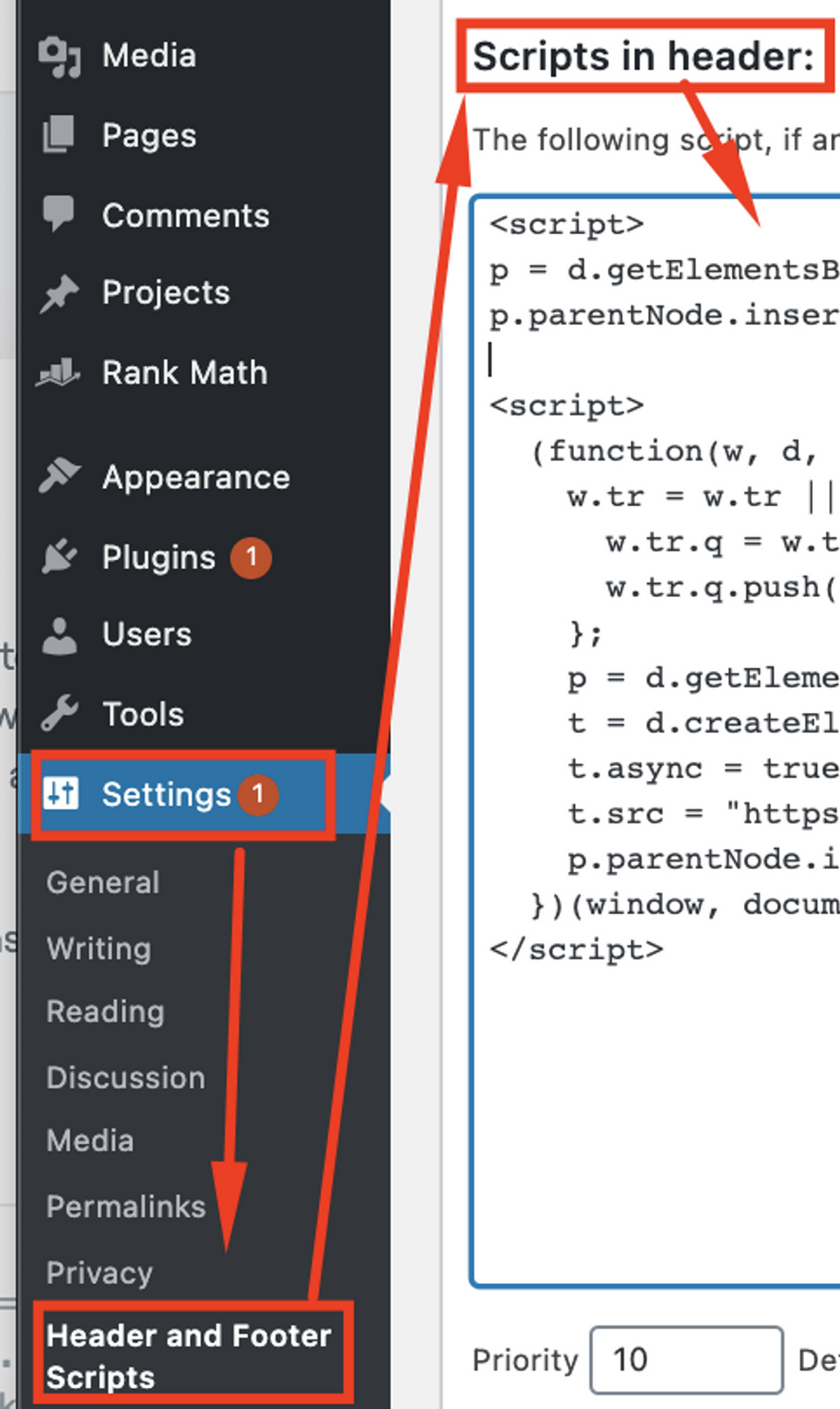 **In this case, you must add the tracking script before the closing \ tag.**